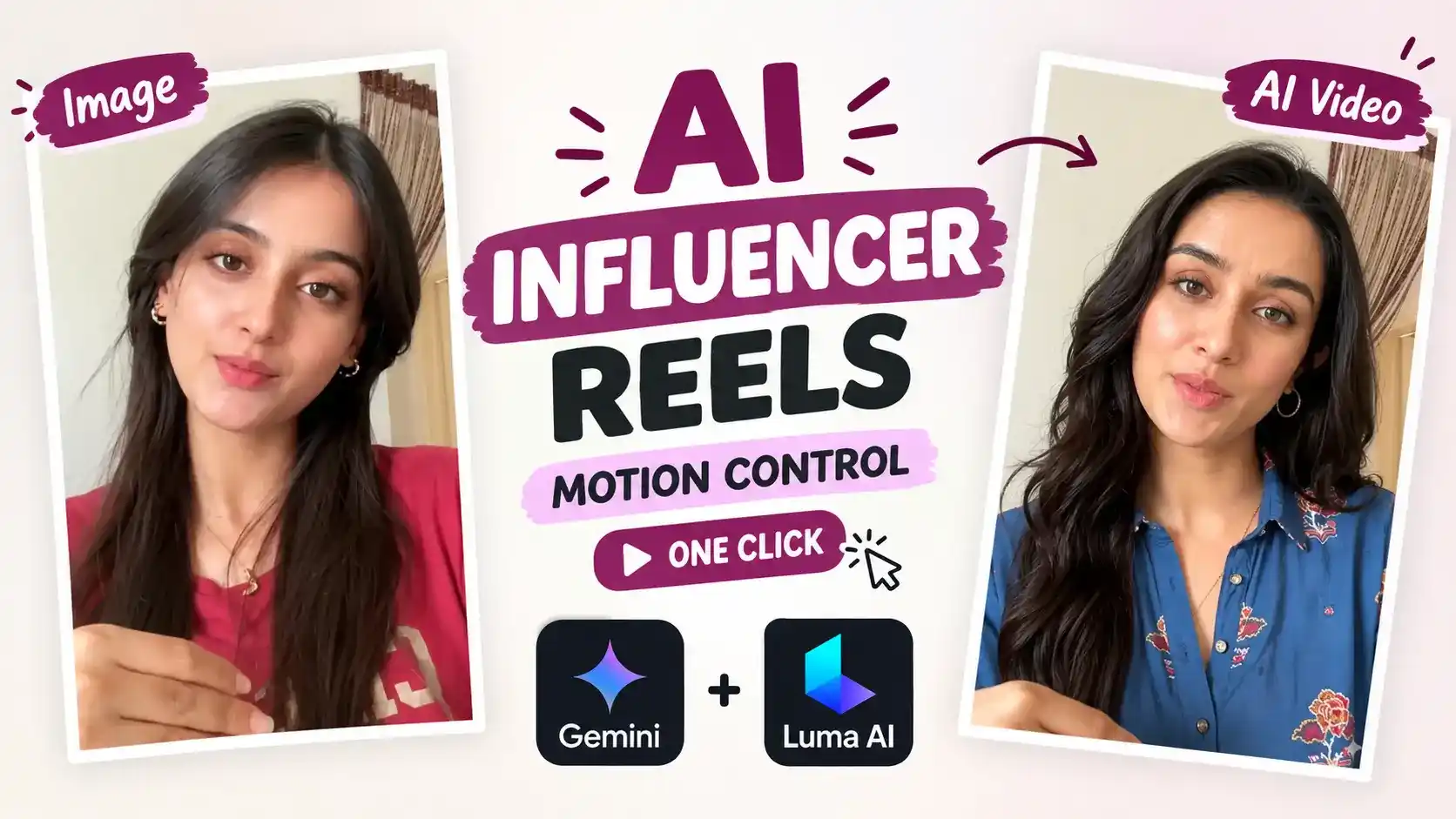
If you watch Reels on Instagram, you have likely come across videos featuring AI influencers. Seeing them might have made you wonder how such videos are created; these are known as “motion control videos.” In this article, I will share the complete process for making them, so you too can easily create an Instagram page where you establish your own influencer presence. I will provide a comprehensive guide not only on setting up the page but also on how to create these AI-generated motion control videos.
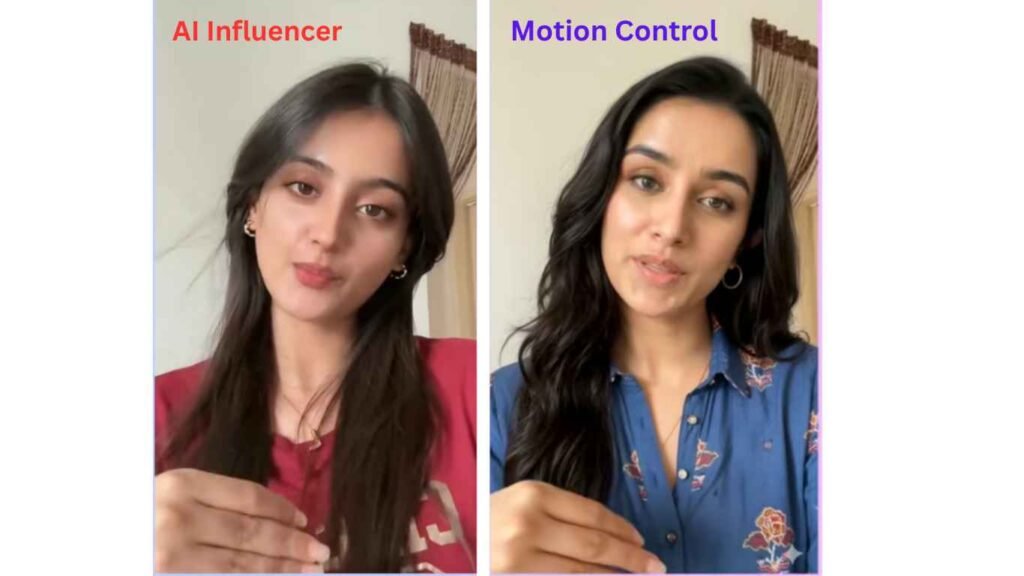
I have taken an influencer’s video here, and on the other side, I took a photo of Shahid Kapoor, which I used to create this video. Although I cannot upload the actual video here, I took screenshots at the same moment, and you can see the motion for yourself; the facial expressions and body movements are identical. You can create a full video in the same way. First, we will generate an image, and I will explain the complete process for that.
What You Need to Create AI Influencer Reels
- Influencer Image
- Motion control video
- Google Gemini
- Luma Labs ai
How to Create an AI Influencer Image
- For creating a motion control video, you can select a character or use your own image; if you wish to use an AI-generated image, it must be saved in your gallery.
- The video to which you want to add motion effects must also be saved in your gallery.
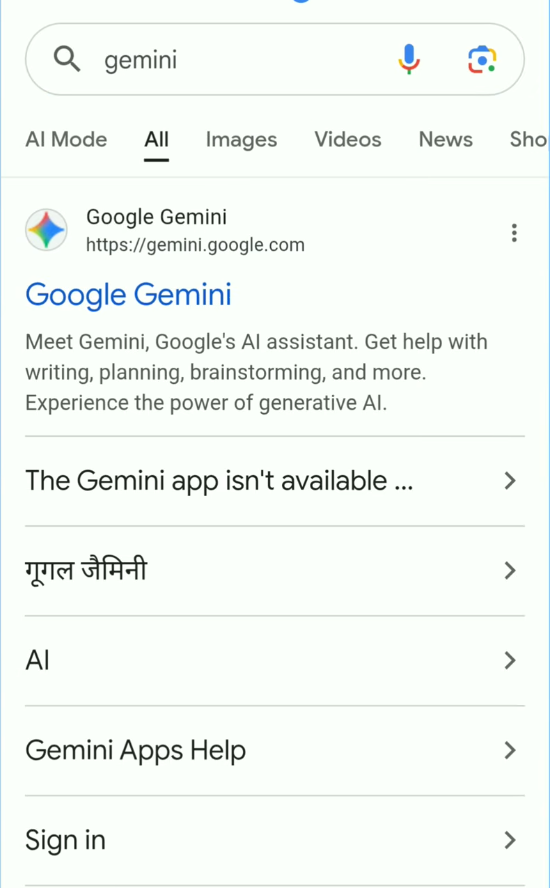
- Thirdly, open Google, search for “Google Gemini,” and access the official Google Gemini website; if you are using it for the first time, sign in using your Gmail account.
- Now, go to your gallery, play the motion-control video you have, and take a screenshot of the very first second. Ensure that the screenshot does not contain any logos or video player icons. The screenshot should be perfectly clear; aim for HD quality and make sure the face is not blurred.
- Now, return to the Google Gemini website. You will see a plus icon at the bottom; click on it and select ‘Gallery’. Upload the screenshot you took of the motion-control video. Next, go to the gallery again, upload the image you want to turn into a motion-control video, and paste the prompt I provided below.
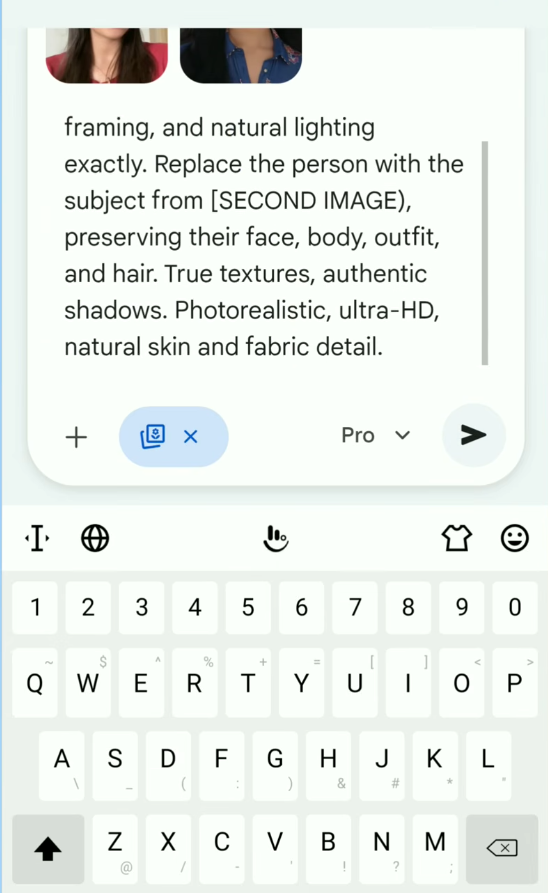
Prompt :
Recreate the first image’s room, framing, and natural lighting exactly. Replace the person with the subject from [SECOND IMAGE), preserving their face, body, outfit, and hair. True textures, authentic shadows. Photorealistic, ultra-HD, natural skin and fabric detail.
Now, Google Gemini will generate an image for you, which you can download. You will also notice differences specifically, changes in the motion and body movement of the subject in the image. Completing this step is essential for creating a motion-controlled video.
How to Control Body and Camera Movements
Now we will add motion to the image we have created, just like you would add motion to a video, that too through a website. For this website, you have to search for LumaLabs.ai View on Google.
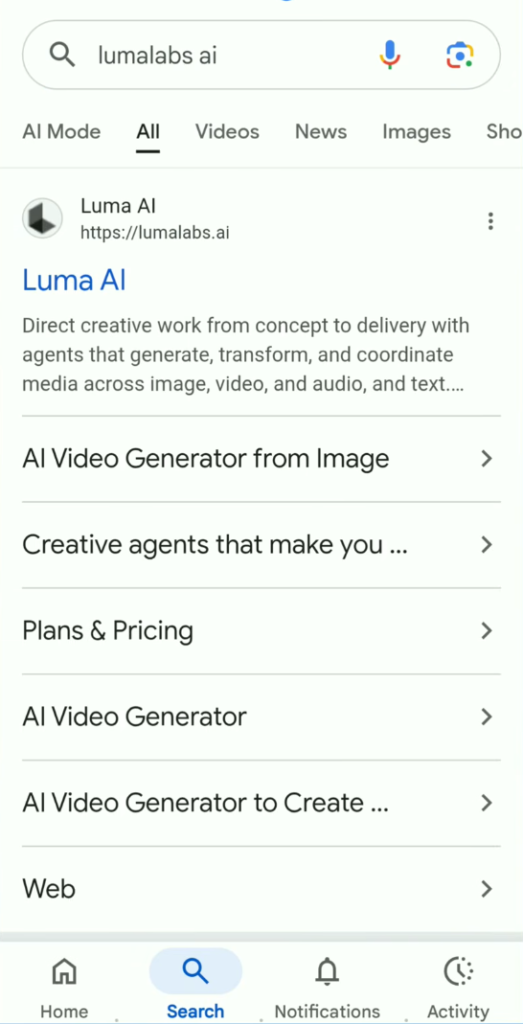
First of all you will find its official website. I will also give its link here. You can also access it directly. If you are using it for the first time then you have to sign in here through Gmail. Then you will be able to create your video. Otherwise some of these options will not show in front of you.
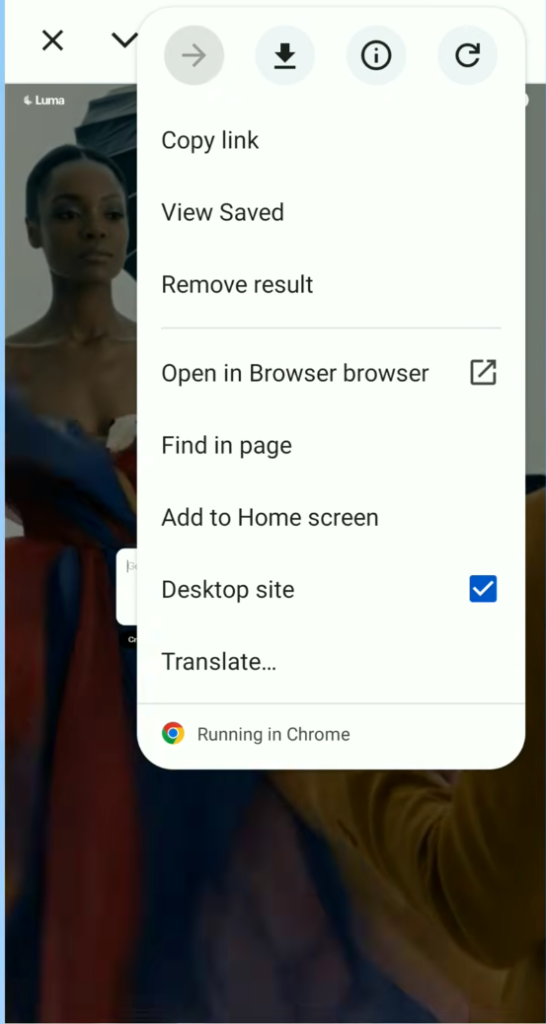
As soon as you open this website, you have to click on the three dots that are visible on the top side of Chrome and put your Chrome in desktop mode. You have to put the blue tick in front of the simple desktop mode as I have shown in the screenshot, then your Chrome will automatically convert to desktop mode.
When you sign in and enable desktop mode, many options will be shown at the bottom of the screen in front of you. You have to click on the plus icon and add your motion control video that you have saved in the gallery. Now you have to press the video. Multiple options will be shown in front of you. You have to go to the modified video and select Killing 2.6.
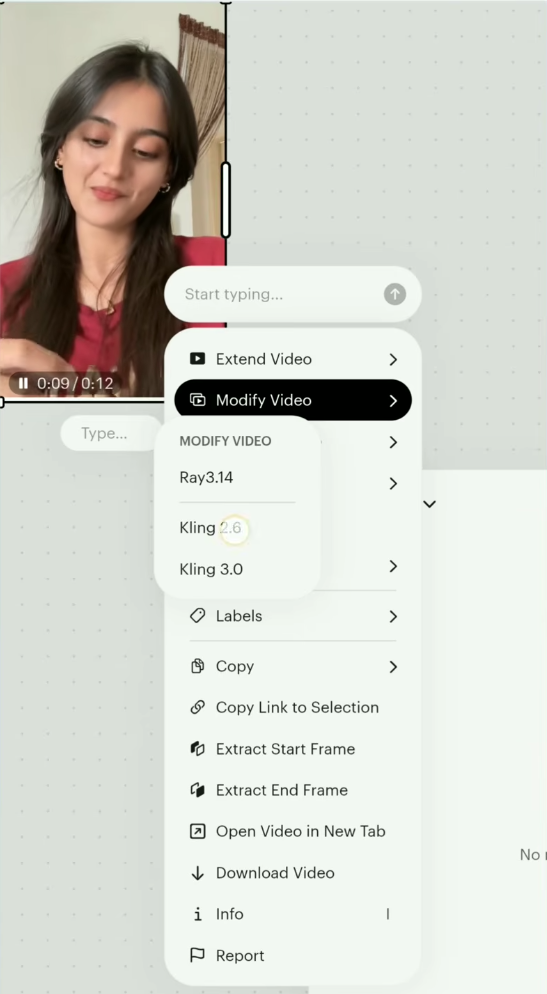
Now this screen will be shown in front of you.
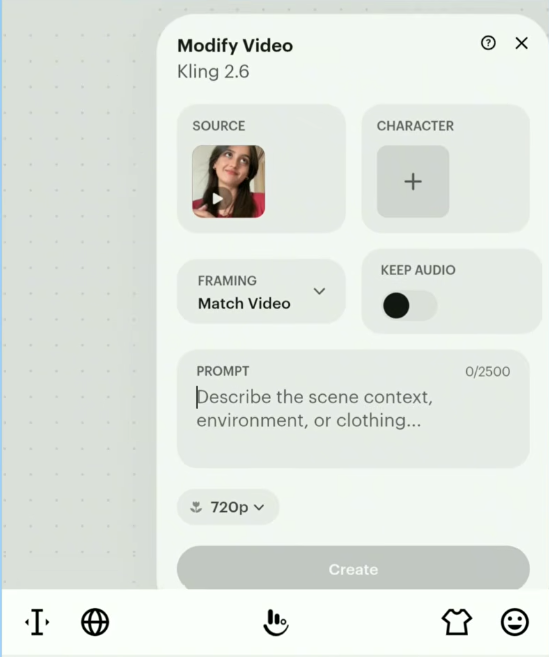
Now you have to upload the image that you edited from Google Gemini in the character space. And you have to select high resolution below, select high resolution 720 and select 1080 and if you want to keep the audio that is behind your video in this motion video, then tap audio on. If you want to remove it, then turn it off. Click on create below and your video will start to be created. It takes 1 to 2 minutes to 5 minutes to generate the video, so you will have to wait for it.
When your video is created, you have to press and hold it and you will have multiple options shown. You have to click on the download option. Then the video will be saved directly in your gallery. You can watch the video. By setting the resolution to 1080 pixels, the result will be very good and in full HD. Now this is your property, now you can upload it to your Instagram page or any other social media.
Common Mistakes to Avoid
If you don’t make this mistake, your video won’t be edited well.
- First of all, whenever you have to add a video with motion control, don’t apply too many effects to this video. If it’s a video with simple lyrics, then that’s the best. Here, the one that plays on a simple song from the same camera angle will be the best.
- You should not use any kind of normal quality video or photo.
- You should use high quality and best face images and videos without any kind of blurry effect, otherwise the AI gets confused.
Conclusion
So friends, in this article, I have explained in a very simple and easy way how you can create motion-controlled Reels using just two tools. By creating multiple videos this way, you can grow your Instagram page, and you can also use this content on other social media platforms.
Is Luma Labs free to use?
No, but when you sign in for the first time, you receive some credits; using these credits, you can easily create three or four videos.
What is Motion Control in AI Videos?
Motion control video offers you the convenience of adding motion to your video using a single image.
Can we add such motion to our images too?
Yes, of course you can add such emotions to your video too, just make sure your image is clear, but repeat this entire process with this image as well.
Alan Edit video editing aur mobile editing tutorials par focus karta hai. CapCut, VN, AI video image aur baaki editing apps ke templates, presets, aur step-by-step guides yahan share kiye jate hain. Maqsad hai editing ko easy aur beginner-friendly banana.