
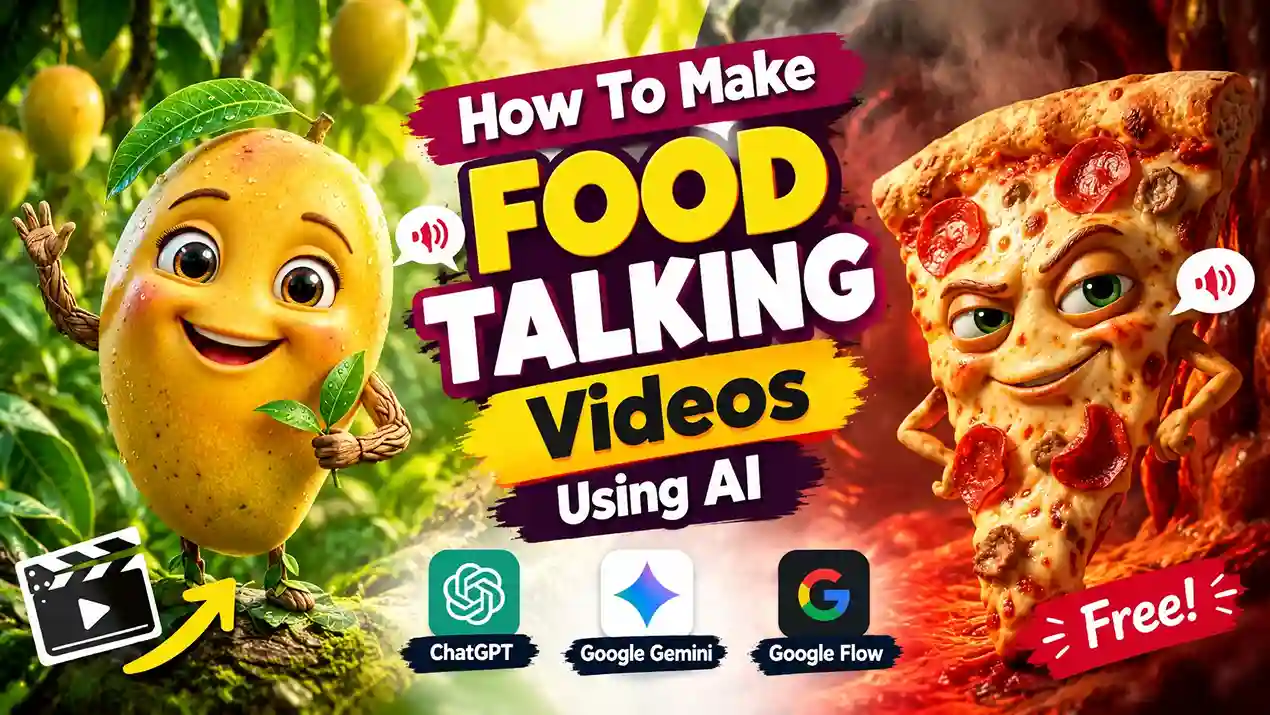
How to Make Viral FOOD Talking Videos Using AI– If you also want to make a food talking or vegetable talking video. Then today we will learn how to make them, that too for free. Using some AI tools. In which you can call any food. You must have seen many such videos, which are being uploaded by different channels on YouTube. They have been growing very well for the last few days. Because I have analyzed them myself. Apart from this, people are also using them in TikTok automation. Along with this, they are also making and uploading such videos to grow their Instagram pages.
But no one is telling you the complete way to make it. But in this article, I will give you a complete guide. You can’t make just one video like this; I will tell you how to make multiple videos. And I will also tell you how they speak dialogues. And how you can get such dialogues written by AI. Not only by AI, but you can also edit them yourself. Similarly, we will also create a good image of them using Google Gemini. If you also want to know everything about them, then definitely watch my article till the end because I am going to guide you step by step.
What tools do you need to create “Talking Food Video”?
You only need these three tools to make such a video. You can use them for free. They have some credits per day. With which you can easily make three or four videos. And after 24 hours, they allow you to make these three or four videos again.
- Chat GPT
- Google Gemini
- Google Fellow
How To Create FOOD Talking Video And Photo Prompt
The first step is that we will generate our own Prompt for it using AI. So, for this, I have given a link to ChatGPT below. You have to click on it and a tab of Chat GPT will open in front of you, now simply create a video of any food, vegetable or fruit you want to make. You just have to tell ChatGPT its name, and it will click the Prompt for you.
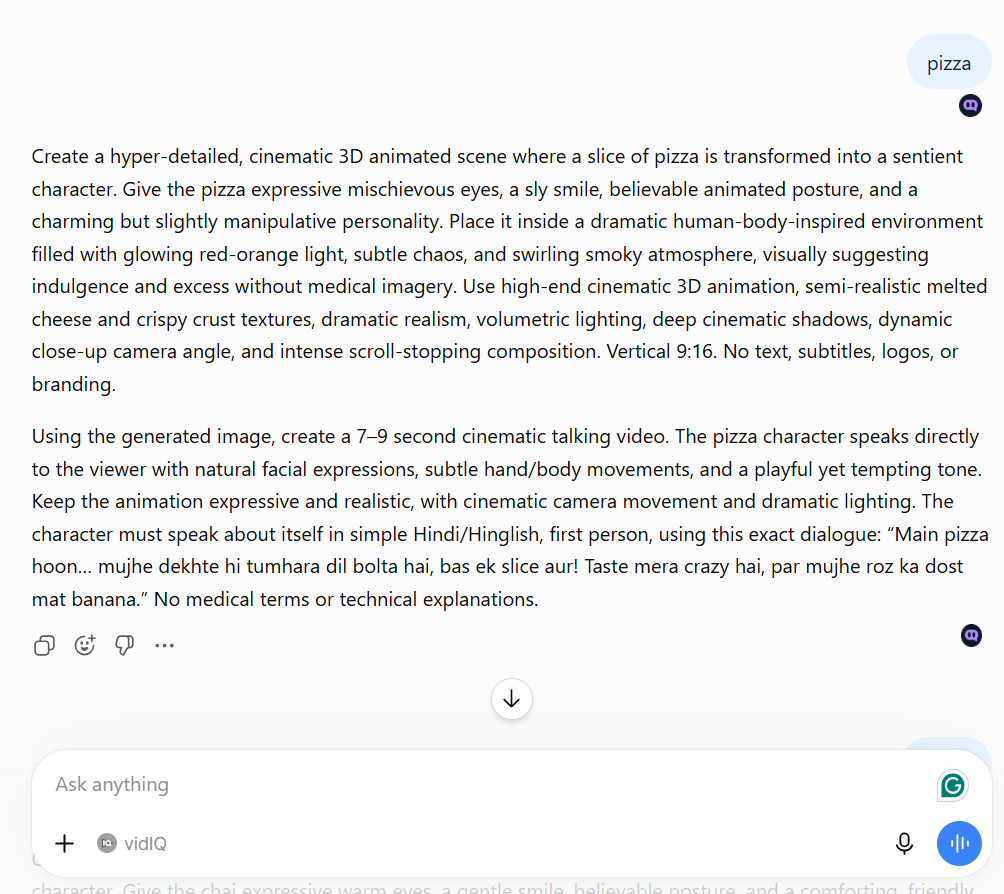
I will also put a screenshot of it here. Now ChatGPT will write two prompts and give them to you, one of which will be for an image and one of which will be for a video. With the help of the above prompt, we will create an image of our food or fruit, and with the help of the prompt below, we will create a video of this image, that too in a very simple way.
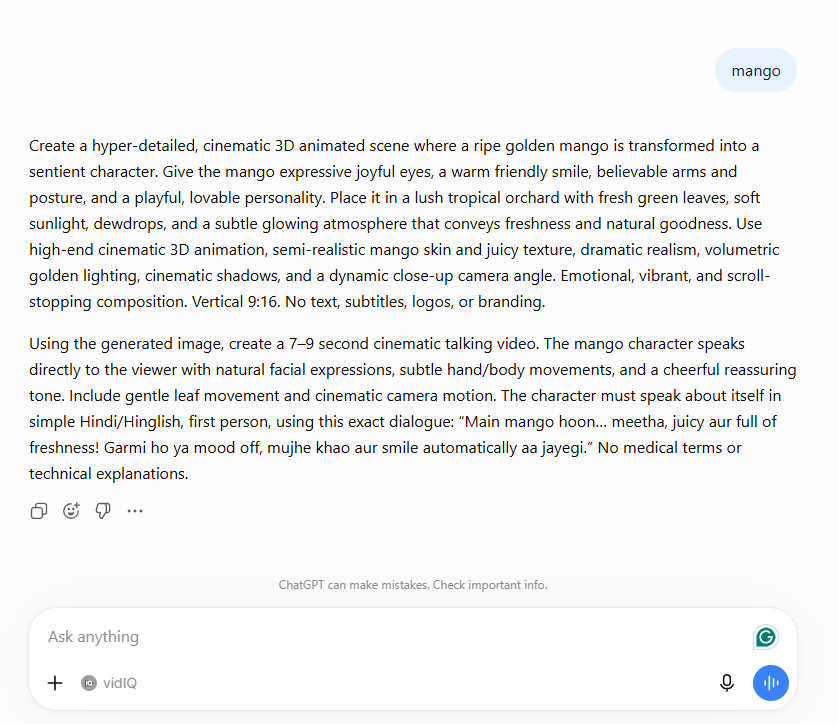
I have generated two prompts here, one for mango and one for pizza. Now we will use them to complete the steps, including the video. You can see the screenshot of the prompt.
How To Create an Image Using Google Gemini
In this, I will tell you how you can generate your image using Google Gemini and the prompt that we have generated from ChatGPT. For this, you have to follow these simple steps, then Google Gemini will generate the image for you.
Step 1
For this, you need to open Google Gemini; I will also provide the link here.
If you are using the Google Gmail website for the first time, then you should log in to it through Gmail, and it will generate an image for you. Otherwise, you cannot get it to generate an image.
Step 2
In the second step, we will copy the above prompt from the prompt generated by ChatGPT. You must have noticed that whenever we have told ChatGPT the name of any fruit or food, it has written two prompts, and we have to copy the above one.
Step 3
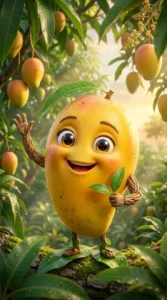
Now, open Google Gemini again and paste this prompt into it. Send the message to Google Gemini. Within a few seconds, it will generate a high-quality image for you. You can then download it, and the image will be saved to your gallery.
Tips
Google Gemini will generate an image according to your requirements on the first attempt. If the image isn’t quite right, simply send the same prompt again, and it will display different results for you.
Full AI Prompt
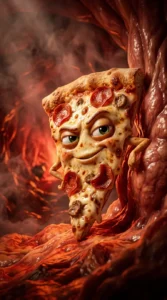
Full AI Prompt

Full AI Prompt
Disclaimer: I have put this prompt here to try it out or to get an experience. All of you should not use it and post videos on your social media because everyone’s video is the same, which can cause copyright issues. So, according to your mind, create your own video by writing different names like different vegetables, fruits, foods like samosas, pakoras, apples, bananas, cabbage, etc. so that no one has a copyright issue.
How To Create An Image To Video Using Google Flow AI
Now we have generated the image using Google Gemini. We are going to talk to them. That too, using Google Flow. You can open the Google Flow website directly for this. If not, I will also share the link with you here. You can also go to Google Flow from there. If you are using the Google Flow website for the first time, then sign in to it through Gmail. Then it will create your video.
Step 1
Now we have to go back to the same ChatGPT window where we generated our prompt. You will remember that we generated the image using the first prompt; now we have to copy the second prompt.
Step 2
Open a new project in Google Flow and paste the promo in the message box below. You will see a box saying “Create Nano Banana” in the message box. You have to click on it. A setting will open in front of you. I will also share it in the screenshot.
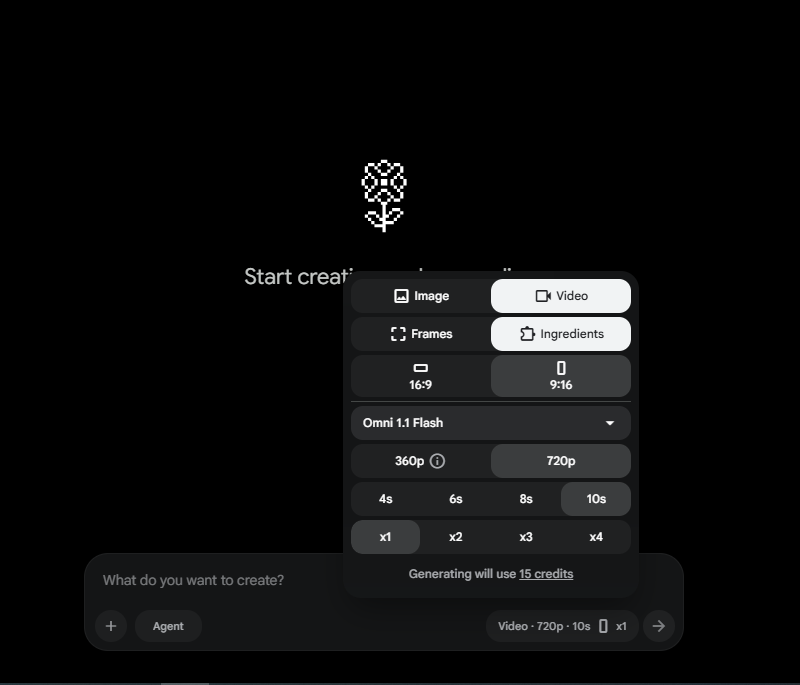
Step 3
- In this, you have to select the video in the image area.
- Below you have to leave the frame selection on the ingredients.
- And below select 9:16.
- Select Omni 1.1 Flash.
- Below you have to select the video result, I will prefer 720p.
- In your prompt, you have to see how many seconds your dialogues are, usually they are 8 to 10 seconds. If your dialogues are too long, then you can shorten them. Otherwise, select 10 seconds.
- In the end, how many results do you want?
- You want one video of it or two similar ones from different angles. I will prefer one, this will allow you to create multiple videos because here you get only a few credits, if you create videos one by one, then you can easily create 5 to 7videos here.
Step 4
Now after selecting all this, you have to go back and then click on the plus icon and upload the image that you have downloaded in the gallery and also select the image and paste the prompt here and send it.
Now it will take a while; usually, it takes from 30 seconds to 2minutes to create a video. After that, a video will be played in front of you. You can watch it. If you don’t like it, then you can say it again, but no matter how many times I have made it, it has given me 100% correct results, which I like very much.
Full AI Prompt
Step 5
Now you can save this video in your gallery when the video is saved in the gallery if you want to edit it further like effects etc then you can edit it in Capcut. Or in VN app both these apps are available on free play store. When the video is final. Then you can share it on social media.
You can also upload it on YouTube because it is 100% your content and apart from that you can also use it to grow your Instagram page. Here again you can use TikTok automation which is currently in heavy demand
Conclusion
So friends, in this article, I have given you a complete guide in a very simple way. How can you create a food talking video, that too is simple. With this step, you do not have to write a long prompt etc. I upload such articles on my website. If you need any more material like creating videos with AI or editing photos with AI, then you can get complete guidance on my website. If you have any questions about it, then definitely ask me in the comments below, I will answer you.
Alan Edit video editing aur mobile editing tutorials par focus karta hai. CapCut, VN, AI video image aur baaki editing apps ke templates, presets, aur step-by-step guides yahan share kiye jate hain. Maqsad hai editing ko easy aur beginner-friendly banana.
1 thought on “How to Make Viral FOOD Talking Videos Using AI”